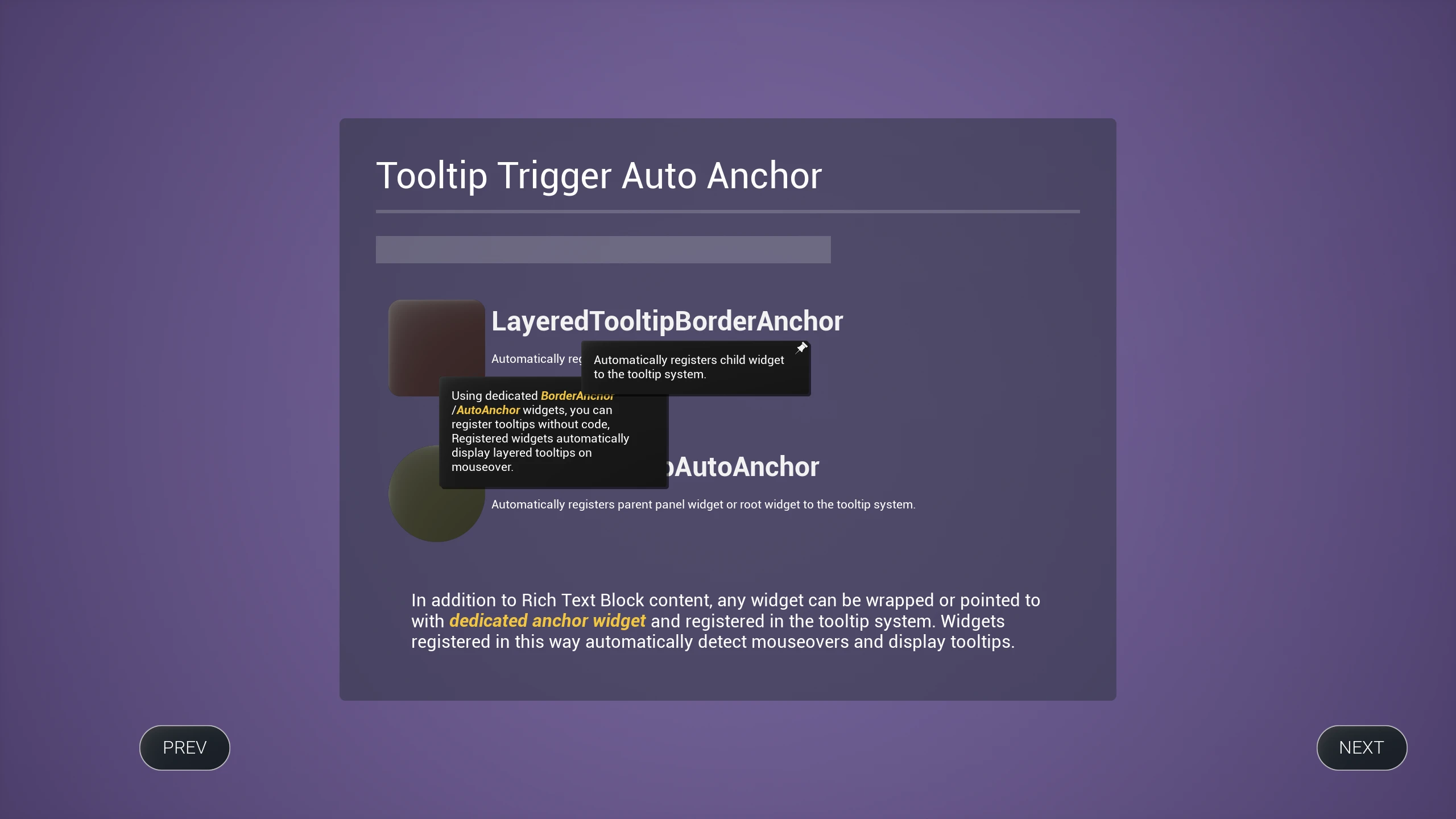
Registering Widgets with the Tooltip System Using Dedicated Anchor Widgets
Register any widget with the tooltip system using
LayeredTooltipBorderAnchorandLayeredTooltipAutoAnchor.
-
Select the widget you want to register with the tooltip system.
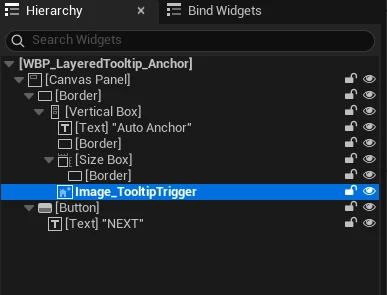
-
In the Widget Designer hierarchy, wrap the widget using
Wrap With... → Layered Tooltip Border Anchor.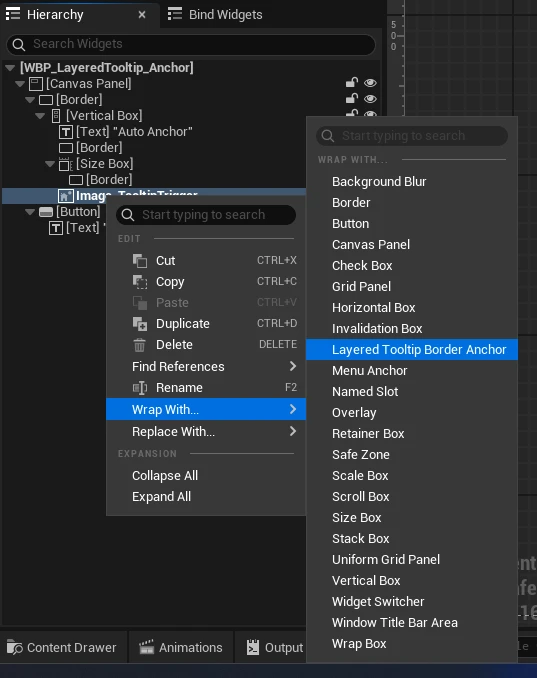

-
Select the created
LayeredTooltipBorderAnchor. -
Configure tooltip data for the widget in the Details tab.
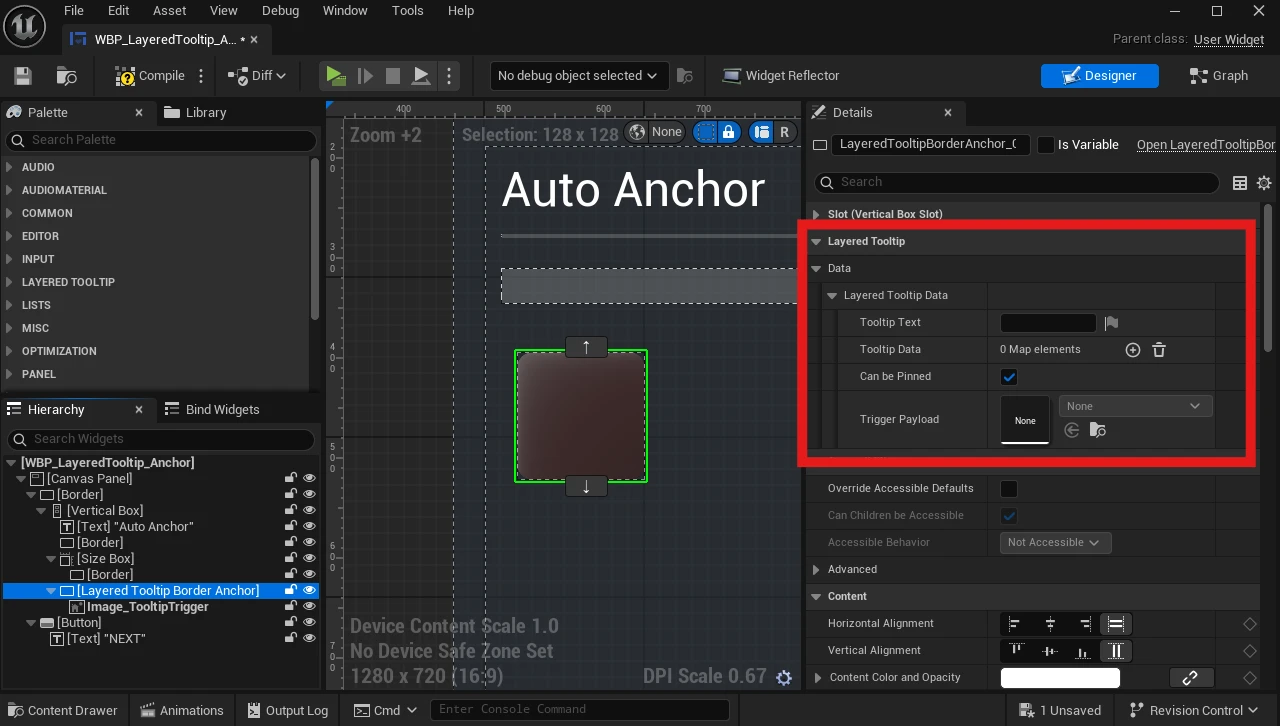
-
Enter tooltip text directly for simple cases.

-
Alternatively, configure metadata to retrieve tooltip text through
LayeredTooltipTextProvider. The default implementation looks up TextId in the String Table.
-
-
Child widgets registered via
LayeredTooltipBorderAnchorhave mouse-over detection and lifecycle management handled automatically.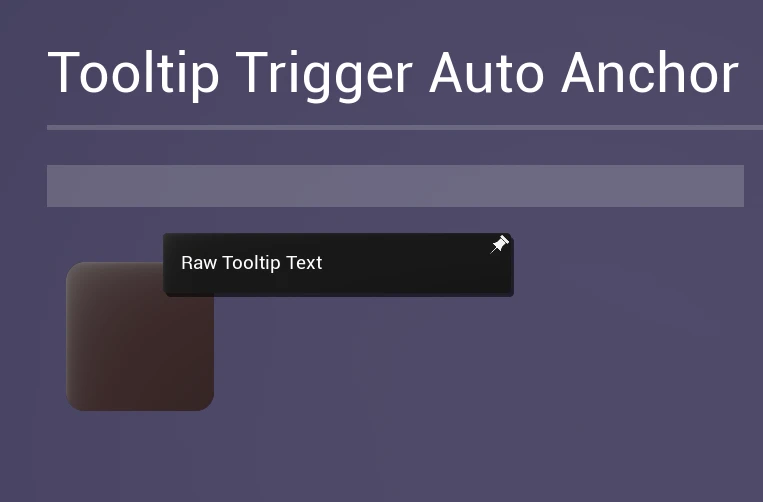
-
Use
LayeredTooltipAutoAnchorto register child widgets, parent panel widgets, or the widget Blueprint itself with the tooltip system.


-
The child widget wrapped with
LayeredTooltipBorderAnchoris now registered with the tooltip system.